
USB Cable Versions Compared: 2.0 vs 3.0 vs 3.1 for Buyers
Ask a supplier for a USB cable and you will get a dozen follow-up questions: which version, which connector, how long, what gauge. The version number is the one that matters most, because it decides whether the cable can move data fast enough for the device on the other end. This guide breaks down how USB cable versions differ in plain terms, and how to match each one to the application in front of you.
What the version number actually means
USB versions are signalling standards, not connector shapes. A cable can carry a Type-C connector and still be a USB 2.0 cable inside, which is exactly why so many orders go wrong. The version tells you the maximum bus speed, the number of data pairs inside the jacket, and how the cable negotiates power.
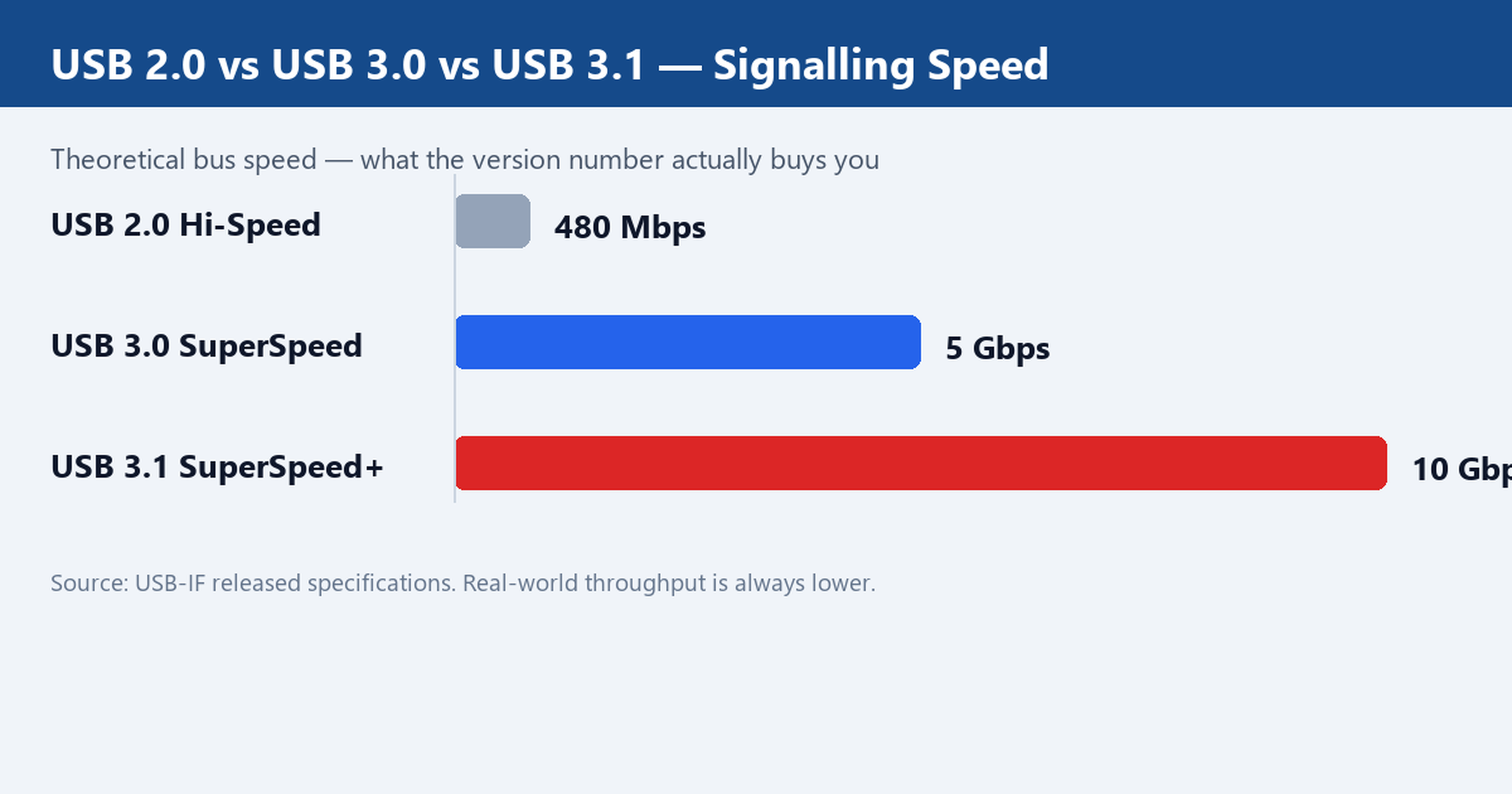
USB 2.0 Hi-Speed runs at 480 Mbps over a single differential pair. USB 3.0 SuperSpeed adds two more pairs and lifts the ceiling to 5 Gbps. USB 3.1 keeps the same connector family but pushes signalling to 10 Gbps and tightens the rules around power negotiation. If you remember one rule, make it this: the version sets the ceiling, and everything else on the bus has to live under it.
USB 2.0 — still the right choice for charging and simple devices
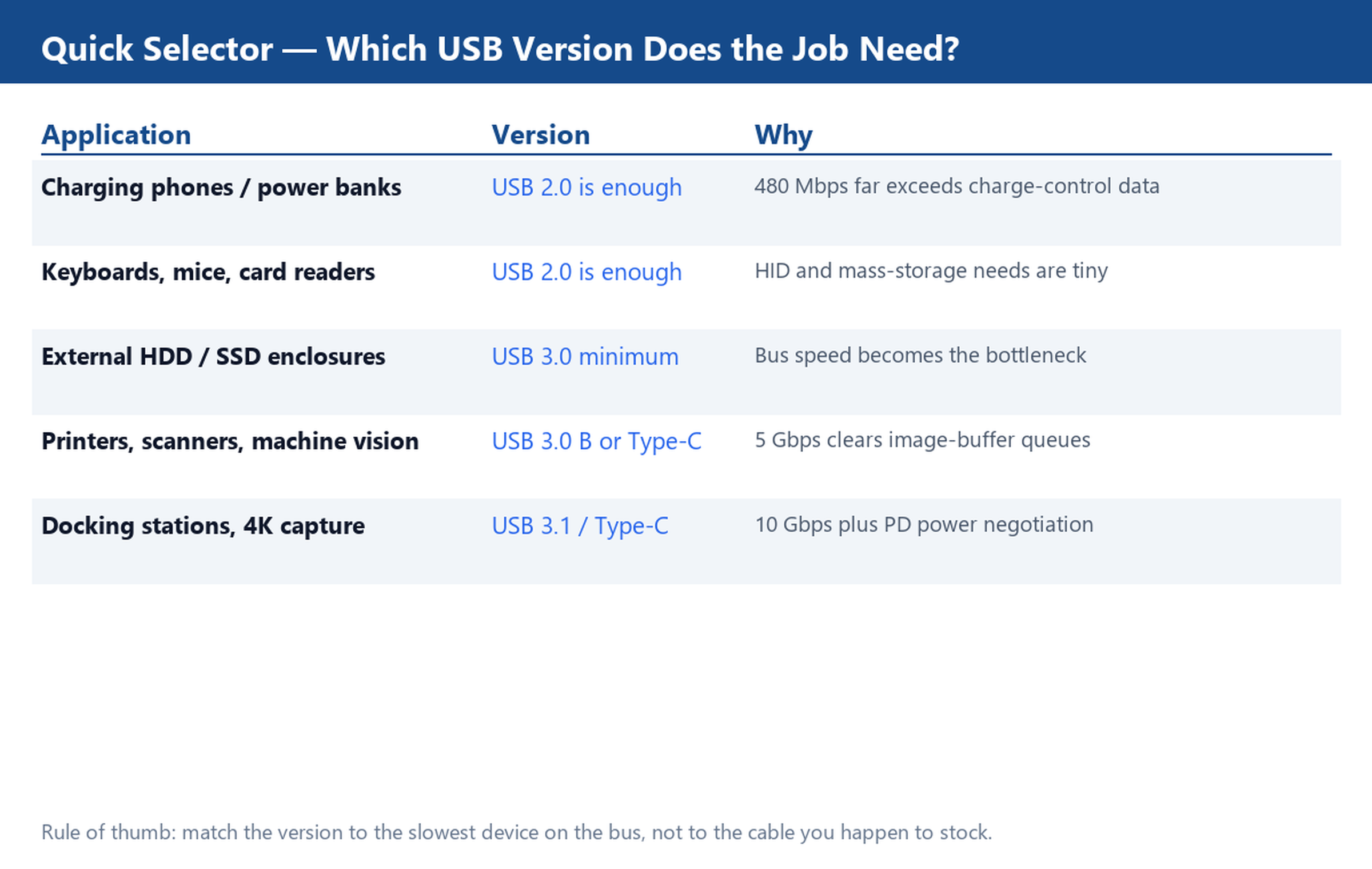
Most USB cables sold worldwide are USB 2.0, and for good reason. Charging does not need bandwidth: the negotiation between a charger and a phone happens over a few control messages, and 480 Mbps handles that with room to spare. Keyboards, mice, card readers, firmware-update cables and point-of-sale peripherals all sit comfortably inside the USB 2.0 envelope.
For buyers, USB 2.0 is also the economical tier. Cables in this family are usually shorter, thinner and cheaper to tool, which makes them the default for promotional items and accessory bundles. If your application is charge-and-sync, a USB 2.0 cable from our catalogue will do the job without paying for bandwidth nobody uses.
USB 3.0 — when bus speed becomes the bottleneck
The moment storage or imaging enters the picture, USB 2.0 stops being enough. External hard drives and SSD enclosures saturate a 480 Mbps link in seconds. Printers, scanners and machine-vision cameras queue up image buffers faster than a USB 2.0 bus can drain them. USB 3.0 answers this with a 5 Gbps signalling rate, which clears those queues and leaves headroom for the next device generation.
USB 3.0 also introduced the familiar blue connector tab and the wider Micro-B plug, so you can often identify the version by eye. When sourcing, check that the jacket and the connector both match the spec you need: a USB 3.0 Micro-B cable with a 2.0 core will pass a visual check and fail on the bench. Our USB 3.0 cable range covers the printer, hard-drive and hub variants that B2B buyers ask for most.
USB 3.1 and Type-C — speed plus power negotiation
USB 3.1 is where the modern cable world lives. Signalling goes to 10 Gbps, and because the standard is written around Type-C, the same cable can carry data, display output and up to 100 W of power in both directions. That convergence is why docking stations, 4K capture dongles and laptop chargers have all standardised on Type-C hardware.
One caution for buyers: Type-C describes the connector, not the speed. A Type-C cable can be USB 2.0, 3.0 or 3.1 inside, and only the specification sheet tells you which. Look for the SuperSpeed or SuperSpeed+ marking, or ask the supplier to confirm the signalling rate in writing. Our USB 3.1 cable and USB Type-C cable lines are separated by signalling rate precisely so this confusion does not reach your warehouse.
Length, gauge and shielding: the specs buyers forget
Version is only half the specification. The other half is the physical build, and it decides whether the cable survives real use.
Length is the first trade-off. USB 2.0 is specified for runs up to 5 m; USB 3.0 drops that to around 3 m because the faster signalling is more sensitive to line loss. Beyond those distances you need active cables or extenders, not just a longer jacket. Our catalogue spans 0.2 m patch leads through 2 m desk-length cables, which covers the vast majority of retail and OEM packaging.
Gauge and shielding matter next. Heavier conductors such as 22AWG keep voltage drop low on charging runs, and a 56k-ohm resistor on the data lines is what tells a legacy charger to behave. Foil or braided shielding is what separates a cable that works beside a motor from one that drops the connection every few minutes. If your end market is industrial, these are the lines to check first.
How to tell the versions apart on a sample
When a sample lands on your desk, there are three quick checks. Count the contacts: USB 2.0 Micro has five pins, USB 3.0 Micro-B has one extra row. Look for the blue insert or the SS marking on USB 3.0 hardware. And for Type-C, read the specification rather than trusting the connector shape. Any supplier who cannot answer these three questions in one email is guessing about their own product.
Quick checklist before ordering
Match the version to the slowest device on the bus, not to the newest one. Decide the length before the gauge, because length caps what gauge can rescue. Specify shielding when the environment is electrically noisy. And if your application sits between two versions, ask for samples of both rather than splitting the order on a guess. For anything that needs a non-standard length, connector or overmould, our custom cable service can build to drawing, and our factory page explains how production and inspection are run.
The full USB cable catalogue and charger cable range are organised by version, so you can shortlist by signalling rate before you compare prices.

Leave a Reply