

Swap a 4K projector for an 8K flat panel, or a conference TV for an 8K signage display, and the first thing that fails is usually not the source device — it is the cable everyone already had on the shelf. A 4K 60 Hz cable can look perfectly healthy on a 1080p bench test and still refuse to carry an 8K signal, because the 8K HDMI cable requirement is set by bandwidth, not by resolution labels. The display mode decides how much data per second the link must move, and the cable either holds that rate or the picture drops, stutters, or never comes up at all. Here are the four checks our engineering team runs through with buyers before an 8K installation, so you can do the same on your side before reusing anything.
8K Is a Bandwidth Step, Not a Resolution Setting
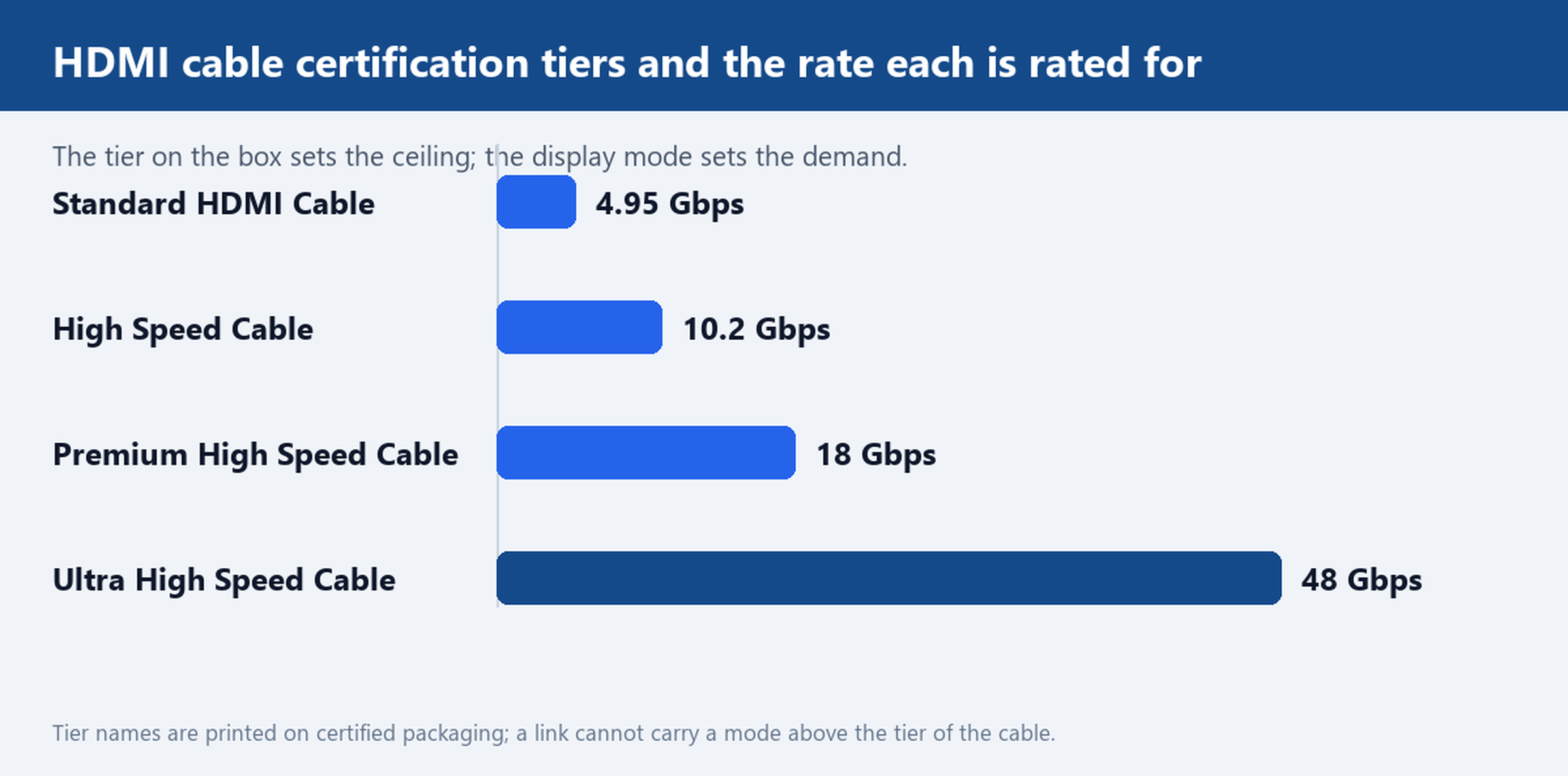
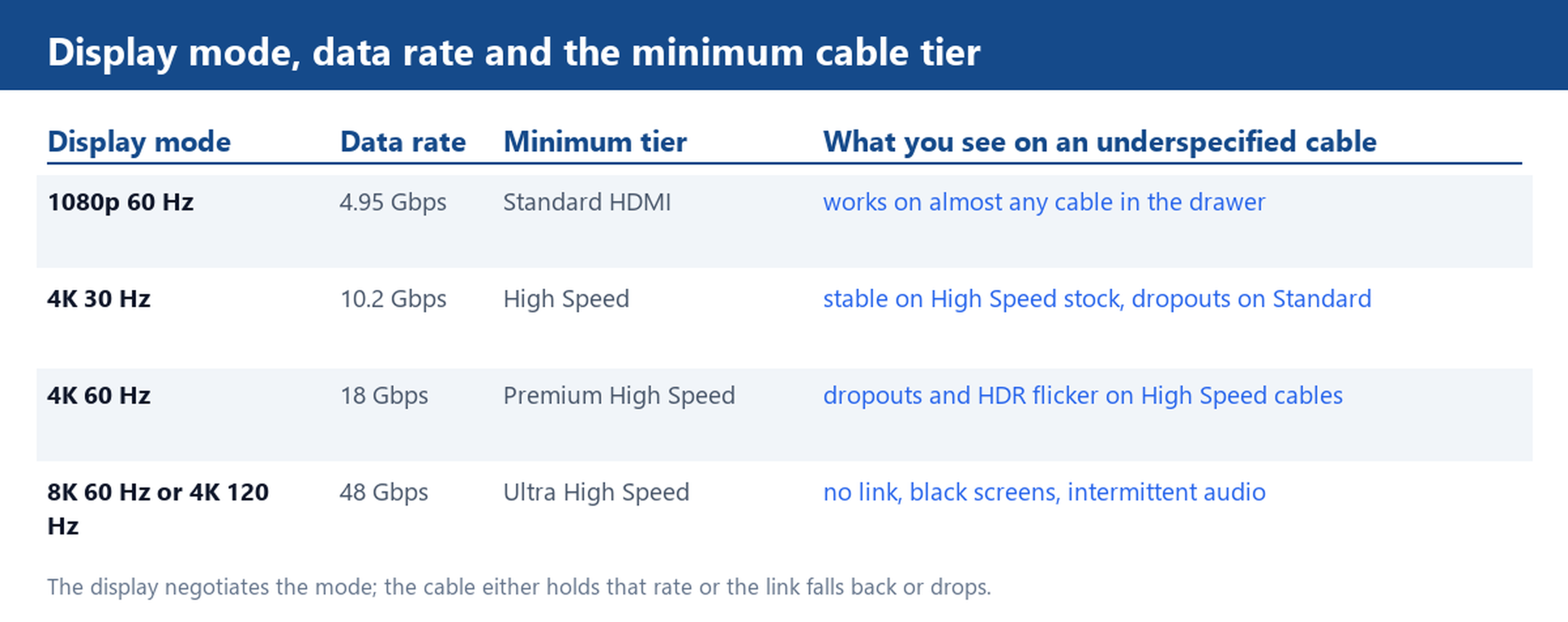
Resolutions are symptoms; data rates are causes. A 1080p 60 Hz signal fits inside the 4.95 Gbps envelope of the earliest HDMI generation, while a 4K 60 Hz signal with 8-bit colour pushes the link to the full 18 Gbps that HDMI 2.0 cables are rated for. An 8K 60 Hz display raises the ceiling again to 48 Gbps, which is why the HDMI 2.1 generation introduced a new four-lane signalling scheme and a new cable certification tier to match. These numbers sit in the released specifications, so the arithmetic is verifiable, not marketing copy.
That is also why resolution alone is a poor purchase test. Two panels can both say 8K on the box and negotiate very different modes depending on content, refresh rate and colour depth. What stays constant is the ceiling of the cable: a link cannot carry a mode whose rate exceeds what the cable was certified for. When you plan an install, look up the mode your source and display will negotiate, then buy the cable tier that covers it with margin.
What a 4K 60 Hz HDMI 2.0 Cable Can and Cannot Carry
A Premium High Speed cable — the 18 Gbps tier — carries every mode up to 4K 60 Hz with 8-bit colour, plus the HDR formats that fit inside that envelope. It will happily hold 1080p at 120 Hz for gaming monitors and most 4K signage loops. What it cannot do is carry the 48 Gbps modes: 8K 60 Hz, 4K at 120 Hz with full colour depth, or any mode that negotiates compressed video at high rates. There is no firmware update for copper. The pairs inside the jacket either have the bandwidth headroom or they do not.
Our HDMI 2.0 cables, such as the 4K HDMI 2.0 Braided Flat Cable, Gold Plated, cover the 18 Gbps tier, and that is the right tier for the bulk of installations we quote. The mistake to avoid is shipping a 4K cable into an 8K job because the connector fits. The connector was never the bottleneck; the pairs inside it are.
Length: Where the Signal Budget Goes First
Bandwidth and length trade against each other in every copper cable. At 18 Gbps, certified passive copper runs are commonly quoted up to about 3 m; at 48 Gbps the comfortable passive range shrinks further, which is why the Ultra High Speed certification matters more, not less, on short runs. If your run is longer than the passive range, the answer is not a thicker cable — it is an active or optical design, or a signal extender over a different medium.
Two practical rules follow. First, measure the actual route length, including the vertical drops behind the display, before you order; a run you assumed was 2 m is often 4 m once it goes around a conduit. Second, keep short passive runs for equipment racks and bench work — our HDMI extension cables exist for exactly that last-metre adjustment — and specify active or optical runs for in-wall distances. If the run length is ambiguous, tell us the route; we will quote the generation and construction that holds the rate at that distance.
Connector Types That Limit You Before the Cable Does
Bandwidth is not the sole constraint in an 8K job; the connector form factor can stop you earlier. Full-size Type A is the default for displays, projectors and source devices, but tight wall mounts and ceiling projectors often cannot accept a straight plug plus its overmould. That is where our 90 degree HDMI cables earn their place: the connector turns sideways so the overmould sits flush against the panel instead of levering the port. Cameras and action cams use Mini and Micro HDMI, and those ports are mechanically the weakest point of the chain, so strain relief deserves as much attention as bandwidth there.
Check three things on the connector side before finalising a PO: the port type at both ends, the clearance behind each panel, and whether the cable will be moved or re-plugged often. A cable that flexes daily needs a strain relief design suited to repeated handling, and a fixed in-wall run needs none of that but does need a jacket rated for the install method.
What to Write on the PO for an 8K Installation
An 8K order fails in procurement more often than in engineering, so put the specifics on paper. Write the display mode you will actually run, the negotiated HDMI generation, the cable tier — Ultra High Speed for 48 Gbps modes — and the run length from source to display. Add the connector mix, including any 90-degree ends, and the environment: in-wall, plenum, or exposed. A PO that reads 8K cable, 10 m invites guesswork; one that reads Ultra High Speed, 10 m in-wall run, 90-degree end at the display can be quoted and built without a follow-up email.
If you are replacing cables in stages, sort the existing stock first: 4K 60 Hz cables go back into 4K racks, and only Ultra High Speed stock goes to 8K positions. Label the bags. Then send us the display model, the source device and the run length you need; we will quote the HDMI generation and connector mix that fits, plus a sample for your bench test. The fastest way to start is our how to order page, and the full range lives in the HDMI cables category. For 1080p legacy positions that stay on older panels, our HDMI 1.4 cables remain in the catalogue.